Waypoint #7: A board skills matrix that shows who to recruit next
A board skills matrix in Compass Organization shows who to recruit next. Plus documents on votes and a Records checklist.
Waypoints is our weekly note on what we shipped in Karma Compass, so you can follow along as it grows.
You want two directors who can help with fundraising, and you have two. One of them rotates off in June. Do you know yet who replaces them?
Karma Compass can show you. Open Members, then Board matrix, and choose "Without terms ending this year". The Financial oversight row drops to one of two, and it moves onto the "Recruit for" list.
The board matrix is part of Compass Organization, and every new organization gets a 14-day trial of it. We also made it possible for directors to read the documents behind a vote before they cast it, and Records now shows which basic documents your library is missing.
How do I build a board skills matrix in Karma Compass?
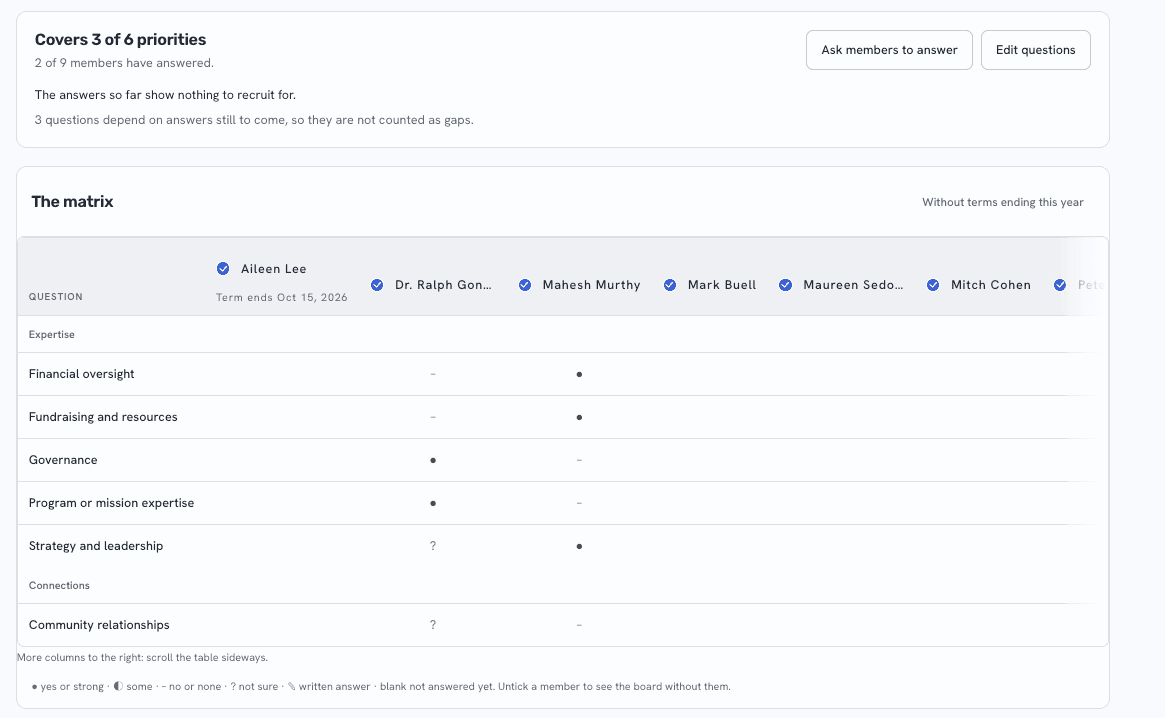
Open Members and switch to the Board matrix tab. If it's empty, you get two choices: "Start from the six board check areas" or "Write my own questions".
The six areas are Financial oversight, Fundraising and resources, Governance, Program or mission expertise, Strategy and leadership, and Community relationships. Each comes with a plain question for members, like "Can you read financial statements and help the board oversee the budget and audit?", and a number of members wanted. Financial oversight starts at 2. Change any of it to fit your board.
To write your own, use "Edit questions". Give each question a short name, a group, the question members will read and how they answer: "Yes, no or not sure", "None, some or strong" or "A written answer". Then set "Members wanted".
The executive director, chair, secretary, board assistant or an organization administrator writes the questions, sends the links and can enter answers for someone else. Every member with a board seat can see the matrix and answer their own row.
How do board members fill it in?
Each member answers under "Your answers", and each choice saves as they pick it.
You can also press "Ask members to answer". Compass emails each member a personal link, with the subject "[your board's name]: a few questions about what you bring". They answer without signing in, and they can reopen the link to change an answer for 30 days. Members with questions left and no live link are already selected, so the usual send takes one press.
If a director gives you their answers on a call, choose them under "Answering for" and fill in their row. Those cells are marked "Entered by" with your name.
What does the board matrix show?
At the top you see how many priorities are covered, for example "Covers 4 of 6 priorities", how many members have answered, and "Recruit for", with the biggest gap first. Below that is a column per member and a row per question, each with "Have / want" and a status: covered, short, missing or waiting on answers.
A blank answer or "Not sure" never counts as a gap. A gap means the answers you have fall short of the number you set.
The what-if view is for nominating season. Untick any member and the matrix works itself out without them. "Without terms ending this year" takes out everyone whose term ends within a year, and "Show everyone" puts them back. Nothing is saved.
Can directors read the documents before they vote?
Yes. Whoever sets up a vote between meetings can attach up to ten PDF, Word or plain-text files under "Add documents". They're filed in Records and listed on the vote under "Read before you vote", each with a Download button.
Directors who vote from the emailed link see the same documents on the voting page and can download them without signing in.
The Votes page also opens on the vote waiting for you, under "Waiting for your vote". The person running a vote can press "Close voting" as soon as every eligible director has voted, without waiting for the deadline. Only the people who run votes see who voted how. Votes are on every plan, Free included.
Which documents should every nonprofit board keep on file?
Records now has a short checklist called Library basics: your bylaws, articles of incorporation, IRS determination letter, conflict of interest policy and your most recent board minutes. A progress bar shows how many are on file. A missing one says what it's for, like "Proof of tax-exempt status" for the determination letter, and "Add one of these" opens "Add documents".
Compass matches these by file title, so give each file a clear name. An untitled scan won't count. The checklist is shown to the people who can add documents to Records: the executive director, chair, secretary, board assistant and organization administrators. It's on every plan.
The "Ask about these documents" box at the bottom of Records also answers in place now. Ask what your bylaws say about quorum and the answer appears right there, with the passages it used and "In your library" links to the documents. Ask a follow-up in the same box, or press "Open in Ask Compass" to keep going full screen. That's on every plan too.
Also this week
- Files by email. Ask your board's email assistant to "send me our conflict of interest policy as a file" and it attaches the document, up to five files and 15 MB. It does this only in a reply to you alone. A board packet that was sent to you works the same way. Every plan.
- Cards in Claude and ChatGPT. If you use Compass from Claude or ChatGPT, it now shows your next meeting and what needs you as cards. A change waits for you to press Confirm. Every plan.
- Expenses against budget. The QuickBooks panel on Mission Control shows expenses as a share of the budget to date.
- Agenda drafts when you schedule. Schedule a meeting from Claude, ChatGPT or Ask Compass and Compass starts preparing a first draft of its agenda. Agenda drafting is part of Compass Pro.
- Word files cited by heading. When Ask Compass quotes a Word document, it names the section heading instead of a page number. Every plan.
- Bounced email addresses. When a member's notice email bounces, whoever manages the roster can press "Confirm this address" on their row in Members.
FAQ
What is a board skills matrix? A board skills matrix lists the skills, experience and connections a board wants, how many members should have each, and who actually does. In Karma Compass it's the Board matrix tab under Members, and it shows what's covered and what to recruit for.
How do I make a board matrix in Karma Compass? If you manage the roster, open Members, then Board matrix. Start from the six suggested areas, such as Financial oversight and Fundraising and resources, or write your own questions. Set how many members you want for each, then send members a link to answer.
Do board members need a Karma Compass account to fill in the matrix? No. In Karma Compass, "Ask members to answer" emails each member a personal link. They a
nswer without signing in, and the link works for 30 days.
Which plan includes the Karma Compass board matrix? The board matrix is in the Karma Compass Organization and Enterprise plans. Every new organization gets a 14-day trial of Compass Organization.
Can I see how my board looks after members' terms end? Yes. In the Karma Compass board matrix, "Without terms ending this year" shows coverage without the members whose terms end within a year. Nothing is saved, so you can try different combinations.
Can I attach documents to a board vote in Karma Compass? Yes. Whoever sets up a vote can attach up to ten PDF, Word or plain-text files. Directors see them under "Read before you vote" and can download them from Karma Compass or from their voting link without signing in. Votes are on every Karma Compass plan.
Which documents does Karma Compass suggest keeping in Records? The Karma Compass Library basics checklist covers five: bylaws, articles of incorporation, IRS determination letter, conflict of interest policy and the most recent board minutes. Records shows which ones are missing.
Try it
Start at compass.karmahq.org. On Compass Organization or its trial, open Members, then Board matrix. If you missed last week, Waypoint #6 covers the assistant you can email.
Get posts like this by email
New posts and product updates.